Yesterday we talked about two ways you can follow blogs (so that you can
tell if there is new content that's been published.) I use blogs
professionally and personally and have learned SO MUCH from bloggers.
When I first started following a few blogs, I used both email updates
and RSS feeds in my browser, as well as just bookmarking in the
traditional way, but I quickly found drawbacks with all of those.
Today, let's talk about my favorite way to stay current with
blogland.

Better Way #3: RSS feed to your Reader
I use Google Reader and LOVE it. I started using it last spring when my college undergrad students were required to follow some education blogs and websites as a part of building a Professional Learning Network (see, it's not just about home improvement and travel!) I kept seeing articles about using a Reader and thought I'd give it a try. I tried subscribing to some of my blogs on my Yahoo home page and just wasn't happy with the results. (This is due partly to the fact that I can access my Yahoo email accounts through several different sites - like "My Yahoo" and "My AT&T," for instance, and each of them has a different interface. It's so frustrating when you expect one look to pop up and something completely different shows up.)
Here's a screen shot of my Google Reader. You can see that I subscribe to many blogs (the titles are on the left.) The blog in red is the one whose content is currently showing on the right (Geninne's Art Blog, love her artwork!) The titles in bold are those with NEW CONTENT - time for me to go read a little! You can also see that I've bookmarked my reader on this computer so I can get to it easily - it's the first bookmark on the left under the "back" button - and, wow, the day I bookmarked my reader, I only had 50 unread posts (it's a little hard to see; my apologies. I'm a beginning blogger, remember? It'll get better, I promise.) You can see at the very top of the screen that today my reader has 257 unread posts. At first, these unread posts made me crazy. I really wanted a small number up there. I've since realized that it's just like the pile of books next to my bed and the pile of magazines next to my chair - it doesn't matter how many there are, they'll get read eventually!
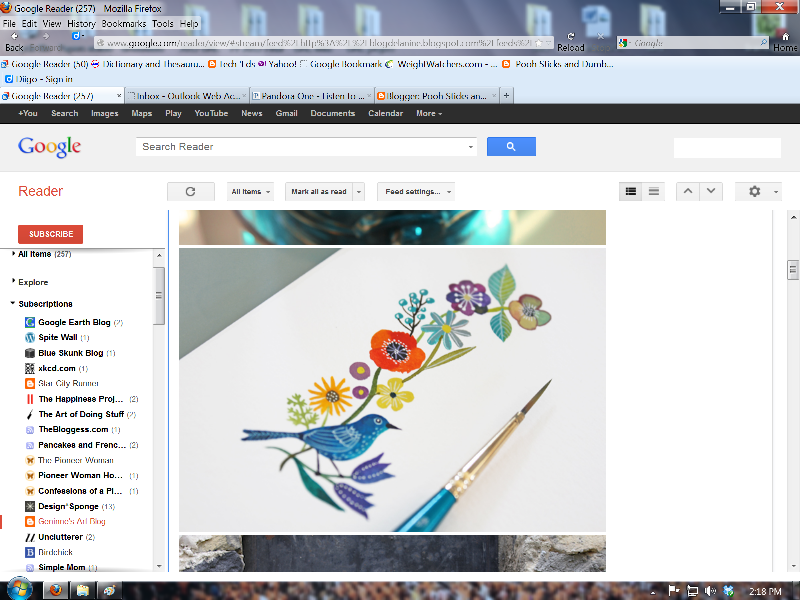
Of course, just like on your desk, you can choose to PILE or you can choose to FILE. I'm mostly a filer. In this next shot, you can see 6 of my files - collapsed so that the many blog titles inside don't show right now. To open them, I just click the little triangle.

To get Google Reader you'll need to set up a Google account. (If you have gmail or Google+ you are already there). Note: you do not have to have a gmail account to set up a Google Reader; you just need a Google ID. Accounts are free, but you do need to be able to read the "Captcha" code to prove you're human. (EDIT: Go to Google.com/reader. If you are not signed in on an account, the page below should show up.)

 |
| Click the Google button |
 | ||
| Click "Add to Google Reader" |
So, add your blogs and watch your list of unread posts grow! Don't let it make you cranky; you can scan through them quickly or even (gasp) mark them as unread using the button at the top of the page.
Each blog title has a triangle that will pull up this menu (below), which enables you to create new folders, sort posts, etc. You can see the titles of my folders and that this one (the red one, remember?) is in my DIY and home improvement folder. (The photo of the cat and dog is the post currently appearing on Posie Gets Cozy; absolutely gorgeous photos.) In the reader, you see the posts but not the layout of the actual blog. You can always "click through" to the blog itself by clicking the blog's name at the top of the reader (currently hidden by the pop-up menu.) (Diane at In My Own Style explains how to install and use Google's "Next" button in this post, which moves you from blog to blog while preserving the view of the blog itself. After reading her post, I tried the Next button, but personally, I prefer using my reader and choosing what comes up next. I'm not great with surprises.)

You can also grab a blog's name and drag it to a different spot on your reader's bar or into a different folder. You can move your folders around. You don't have to alphabetize; that's just my thing (and they are sometimes alphabetized and sometimes listed in their order of importance to me, so if you see a title "out of order" know that there is likely a reason for it...) I'm sure there are many other cool things to do, I just get so busy reading my blogs that I don't spend time playing with the applications of Google Reader. If you find one, do leave a comment and let us know!


